I just added a permanent Menu Bar to my iPad in iPadOS 27, and it's made my Apple tablet feel much more Mac-like
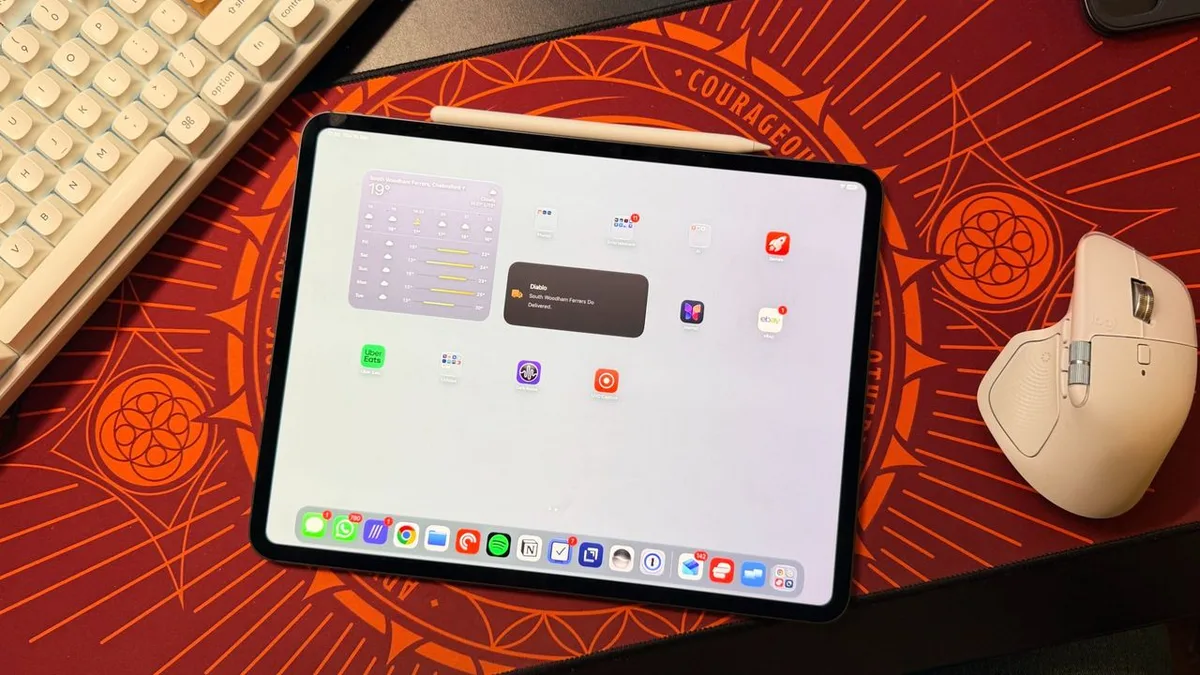
Apple has traditionally kept the iPad closer to the iPhone in terms of core functionality (even after it released iPadOS as a standalone software package in 2019), but iPadOS 26 marked a distinct shift towards making the iPad feel more Mac-like .
And honestly, this change in direction made sense.
After all, iPads now run MacBook-level M-series chips; the iPad Pro (2025) , for instance, uses the M5.
They also let you run background exports in creative apps, switch audio sources while podcasting, and complete many more high-level productivity tasks.
One excellent addition in iPadOS 26 was the arrival of the Menu Bar, which acts as a facsimile of the macOS version of the same feature.
But having used iPadOS 27, which launches today (September 14), since its launch in beta earlier this year, I can confidently say that this new software package makes the iPad feel more Mac-like than ever — and the Menu Bar is once again responsible for that.
Passing the bar The Mac-like Menu Bar in iPadOS 27 (Image credit: Future) As mentioned, the Menu Bar is about as Mac as it gets, offering app-specific options at the top of the iPad screen.
It’s as synonymous with macOS as the Dock, and it’s one of the core features that take some getting used to when switching from a Windows PC to a Mac.
On Mac, the Menu Bar is permanent.
It sits at the top of the screen for easy access and highlights which app you’re currently using (something that’s particularly useful if you’re juggling multiple apps and keyboard shortcuts), but in iPadOS 26 it wasn’t, meaning it could be just as much of a hindrance as it was a help.
Thankfully, iPadOS 27 ensures the Menu Bar is always available, and while there are still some things I wish I could do on Apple’s tablet, the ability to affix the Menu Bar permanently is a change I welcome. (Image credit: Future) To do so, once you’ve updated to iPadOS 27, open Settings and select ‘Multitasking & Gestures’ on the left-hand sidebar.
You’ll have to be on the Windowed Apps or Stage Manager option to be able to see the Menu Bar.
From here, look for a toggle labelled ‘Automatically Show and Hide Menu Bar’.
If it’s on, turn it off, and you’ll see the Menu Bar consistently across apps, unless you’re watching something in full-screen mode.
5News aggregated this summary from the outlet’s public feed. The full article, with all the context, is on www.techradar.com — the content belongs to TechRadar.