Here's how to reset your ASUS router
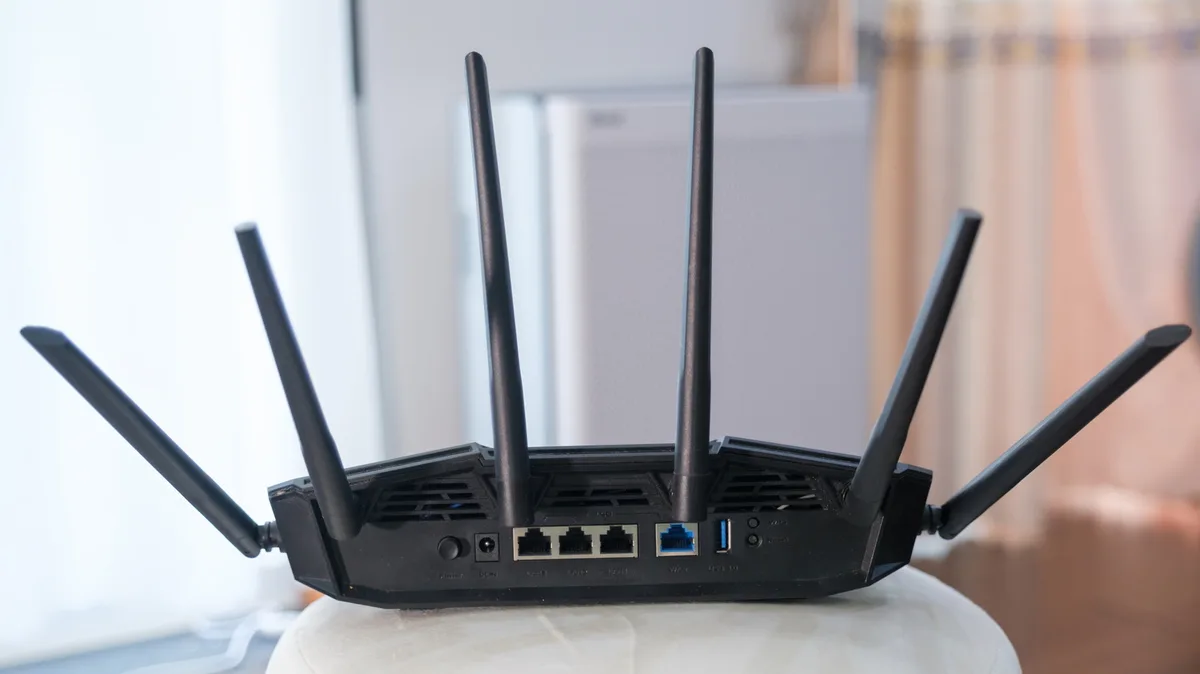
tinhkhuong/Shutterstock Located at the center of any smart home setup, your router has become integral to the functioning of your daily life. However, this centrality makes technical problems with routers particularly frustrating. Whether you've forgotten your passwords, have lost your signal or are troubleshooting technical difficulties, resetting your router can be a catch-all solution for most common problems. Critically, however, it is not a process that should be taken lightly, as resetting your router will erase all custom settings.
Luckily for ASUS customers, the process of resetting your router to its default settings can be fairly simple. The company maintains several resources to help its customers wade through the technical waters, including in-depth support pages and YouTube videos detailing the technical steps of troubleshooting your router. However, if you don't feel like wading through technical manuals or pausing and rewinding YouTube tutorials, then this article is perfect for you.
No matter which ASUS router you are using, the company suggests two methods for returning your router to its factory settings. One is to work through the settings page via your account's web portal or application. The other is to manually reset your internet router via the reset button on the back. Below, we'll work through how to accomplish each of these methods, the pros and cons and any auxiliary information necessary to best prepare you for a hard reset.
If you are unable to restart your router via either of these avenues, you can always try to complete a hard factory reset. This will allow you to scale your router back to its default factory settings without undergoing any intensive troubleshooting procedures. Notably, ASUS suggests undergoing standard reboot procedures before attempting a hard factory reset. Unfortunately, ASUS routers deploy at least eight different hard reset procedures depending on your make and model. To discover which method you need to use, follow the instructions on the ASUS support page .
Screenshot by Alec Hively (ASUS on YouTube) Before diving into your reset options, ASUS instructs its users to ensure that their account and password information, as well as any special settings they'd like to return to after the reset, are saved somewhere in advance. Because resetting your router returns the equipment to its factory settings, you are bound to lose this information if you do not save it in advance. If you are unsure of your account information, ASUS suggests contacting your internet service provider before proceeding. ASUS also warns that a hard reset will "clear all the data log for AiProtection, Traffic Analyzer and Web History," so carefully consider whether you'd like to save such information before proceeding.
Next, ensure that your router is connected to your computer, either wirelessly or through an Ethernet connection. To set up your wireless router via a wired connection, take your router's AC adapter and insert it into the DC-IN port at its back, and plug it into the power outlet.
5News aggregated this summary from the outlet’s public feed. The full article, with all the context, is on www.engadget.com — the content belongs to Engadget.