Why it's important to monitor your PC's background processes
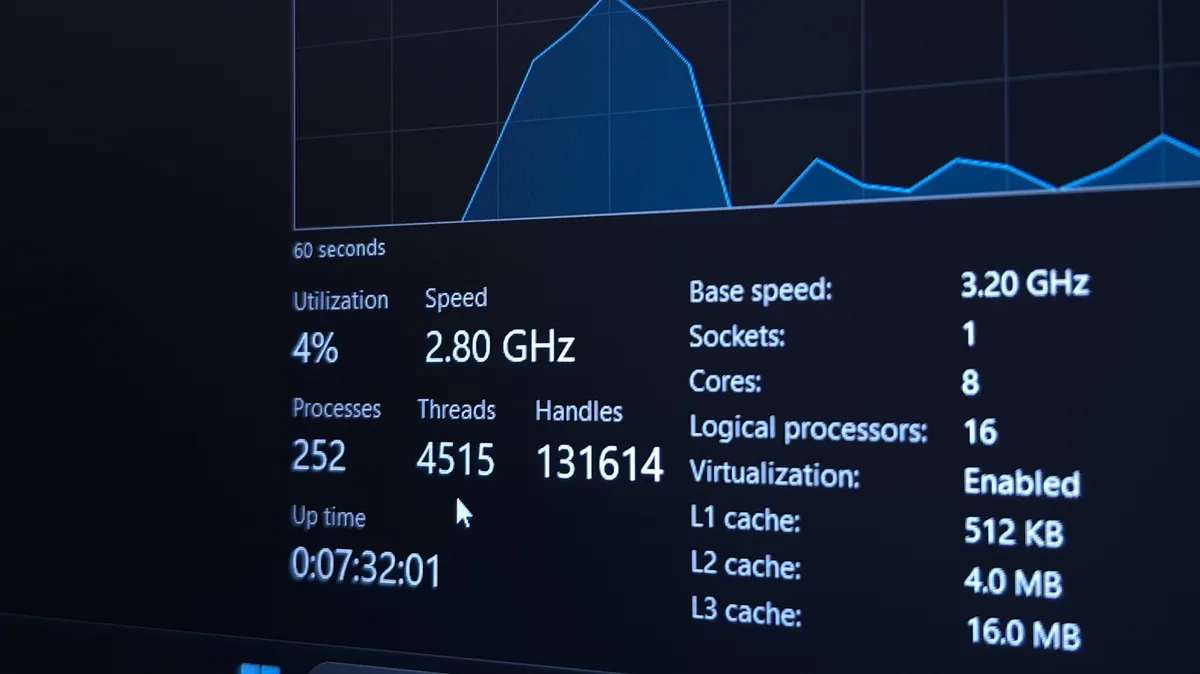
Knowing what normally runs on your PC helps you spot when something isn't right.
Nwz/Shutterstock Add Engadget on Google: Preferred Source Google Discover Your PC is always doing something , even when you've closed all the app windows from your desktop. Windows is checking for updates and keeping everything moving under the hood, with other apps still running quietly in the background. Ideally, this is all happening with a useful purpose. But some apps or services are always going to use more processing power or memory than you expect, taking up resources that could otherwise be available to apps you actually want to use.
With that in mind, it's smart to get into the habit of checking your PC's background processes. When you know what's supposed to run, it'll help you spot the unusual. This doesn't mean you need to watch the numbers all day, and a long running list isn't bad by itself. Instead, monitoring them means you can spot processes causing problems or sucking up resources on your PC . That'll help you decide what to leave alone and what to close, especially when your PC starts to feel slow.
Thanadon88/Shutterstock Background processes are programs, or parts of programs, running without you directly interacting with them. They're handling everything: mundane jobs like syncing files and installing updates, as well as important visual elements like the windows you're clicking.
There's one place you should look first when you want to see what's running on your PC: Task Manager. Alongside your open apps, you'll find all running background processes, including system-level Windows tasks. It shows how much CPU power and memory is in use for each, along with disk activity and network bandwidth.
There are a couple of ways to open it. Ctrl + Shift + Esc on your keyboard is a quick shortcut, although pressing Ctrl + Alt + Delete > Task Manager will get you there too. You can also right-click the Start button or an empty area of the taskbar and select Task Manager .
Begin on the Processes tab (accessible through the left sidebar). Clicking the Name header to sort by app title is handy, as this groups running processes by type (active Apps , then Background processes and finally Windows processes ). Click any of the column headings to sort using them instead, bringing the heaviest users to the top.
Jack Whitcombe for Engadget You'll recognize some of the entries right away. Expect to see apps like Chrome listed, plus Task Manager itself. Others are less obvious: a game launcher, for instance, might leave an updater running after you've closed its main window. You'll also find services that Windows relies on, so don't assume something is unnecessary just because you don't recognize it.
Chrome is a good example, as it has plenty of background processes that run while you're using it. Each tab has a process, along with others that handle features like hardware acceleration and extensions. Chrome's own Task Manager tool ( Shift + Esc ) gives a clearer idea of what each process is responsible for.
Don't expect a one-size-fits-all number of background processes; this depends on your PC's specs.
5News aggregated this summary from the outlet’s public feed. The full article, with all the context, is on www.engadget.com — the content belongs to Engadget.