What's the USB trident symbol for? How to know what kind of port you have
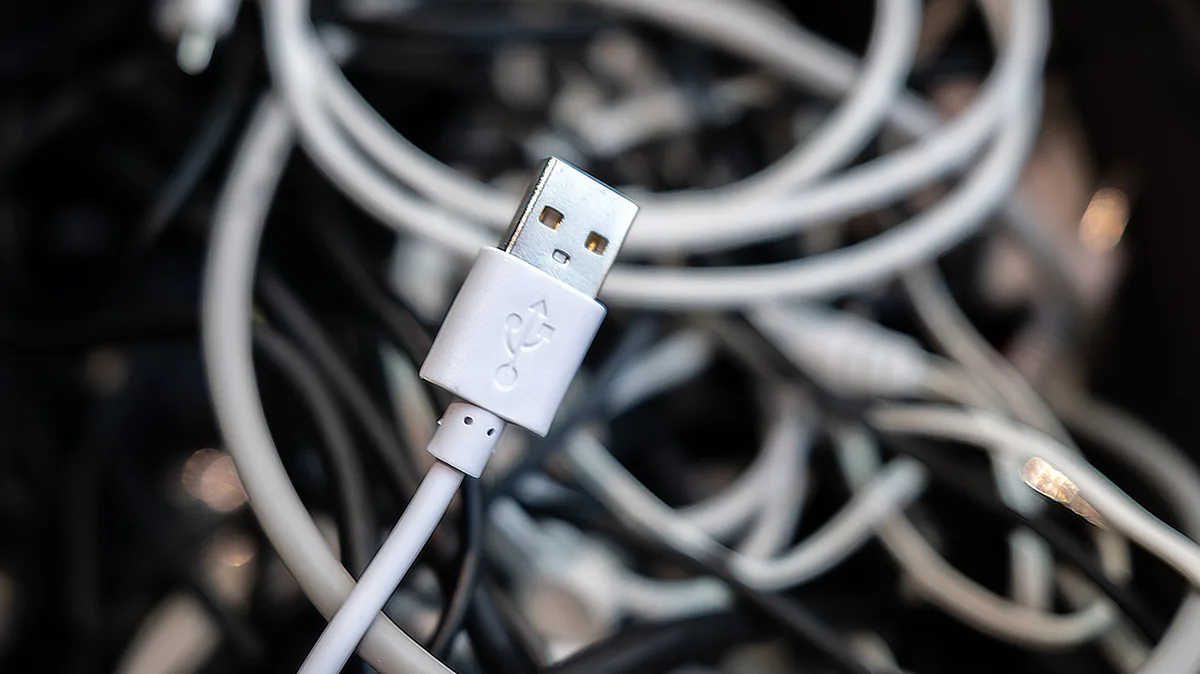
USB ports and cables have tons of potential capabilities, but making sense of them can be tricky if you don't know where to look.
Engadget USB is supposed to be a consistent connection. But as the connector and underlying interfaces have evolved over the decades, it's more confusing than ever to know what a given USB port or cable is capable of. Some offer ultra-fast data transfers, while others can power an external display. Older USB ports are still fine for connecting devices that aren't reliant on speed. But unfortunately, the icons that represent these standards are rarely clear on their own.
While it's far too messy to dissect into every little update USB has seen, you can still make sense of it all using a few easy checks. Knowing what's underneath a connector or port gives you confidence when buying a new laptop or cable. It also helps you optimize which devices are plugged into which slots so you don't waste time on sub-optimal transfer times.
Next time you look at your USB devices, you'll know how to make sense of these identifiers.
The following revision, USB 3, went through several updates and name adjustments from the USB Implementers Forum (IF) group that manages the standard. Initially, USB 3.0 (5Gbps bandwidth) became available in 2008. Then USB 3.1 (10Gbps bandwidth) arrived in 2013, followed by USB 3.2 (20Gbps) rolling out in 2017. USB 3.0 was also called "SuperSpeed" (SS), with USB 3.1 adopting "SuperSpeed+" (SS+), and USB 3.2 going by the clunky "SuperSpeed USB 20Gbps." These generations' trident logo was accompanied by "SS" and the corresponding number showing its speed in gigabits/second.
As these evolutions occurred, the USB IF renamed them, adding more confusion. There were "gen" titles, like "USB 3.2 Gen 1x1" used for USB 3.0, which have thankfully since been retired. As of 2022, the naming has settled on USB 5Gbps , USB 10Gbps , and USB 20Gbps for what were originally 3.0, 3.1, and 3.2 respectively.
Red ports, while not as common, usually signify either USB 10Gbps (originally USB 3.1) or USB 20Gbps (originally USB 3.2). Also, red ports typically provide power even when your computer is turned off. Yellow ports, similarly, can be USB 2.0 or USB 5Gbps and provide power even when the PC is shut down. You might even see purple USB connections , though these are limited to specific manufacturers.
Today, companies that create USB devices are encouraged to use symbols instead of colors. There is no approved meaning for any colors aside from white, black, and blue. Symbols make it easier for you to know what a USB device is for without having to guess or look at a user manual.
USB4 2.0 (a change from USB 3's original naming convention) arrived in 2022. It can handle throughputs of 80Gbps and is accordingly labeled USB 80Gbps . Importantly, USB4 is limited to USB-C connectors. That doesn't mean all USB-C cables are fast , however. Just like USB-A, USB-C is merely the connection type, with varying standards underneath.
It's impressive to consider how far USB speeds have come. Consider transferring 100GB of data in a best-case scenario. Over USB 2.0, this would take around 28 minutes.
5News aggregated this summary from the outlet’s public feed. The full article, with all the context, is on www.engadget.com — the content belongs to Engadget.