How to turn off Find My iPhone (and when you definitely should)
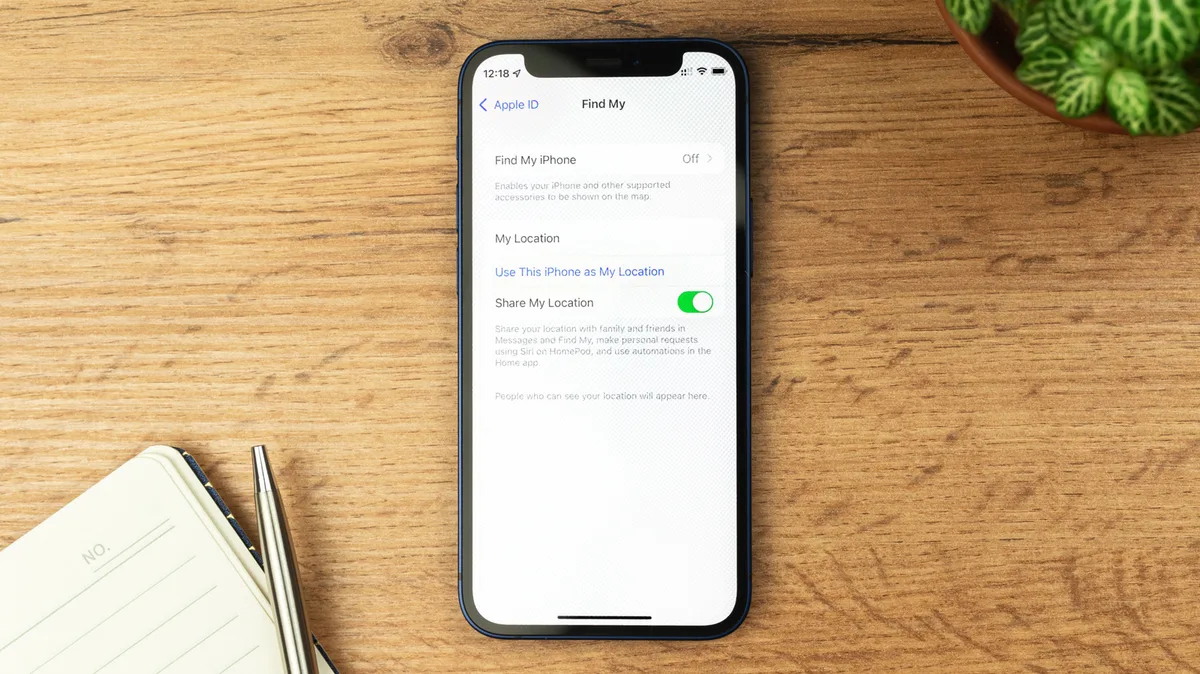
There are times when turning off Find My is necessary, but you should always have it on otherwise to keep your phone safe.
FellowNeko/Shutterstock Apple's Find My service will help you locate your iPhone, iPad or other Apple device that has been lost, stolen or simply misplaced. It relies on Apple's Find My network, which is a crowdsourced system where other people's Apple devices use Bluetooth to detect the location of your item — in some cases, even when it's switched off. It then reports the approximate location of the device to you.
While the feature can be a life-saver, there are instances when you should switch it off. Primarily, Apple recommends disabling Find My before selling, giving away or trading in your device , as well as if you're sending it in for repair. This ensures technicians won't be hampered by security features and can properly run diagnostics to figure out what's wrong with your device. However, disabling Find My at other times will reduce your phone's security.
If you're selling or giving away your device, the process to factory reset your iPhone ( Settings > General > Transfer or Reset iPhone > Erase all Content and Settings ) is the easiest way to disable Find My. This will ask for your Apple Account password to make sure it's you wiping the device, and automatically disables Find My as part of the reset process.
Importantly, turning off Find My also disables Activation Lock, which links your Apple Account to the device. When Activation Lock is enabled, your device cannot be used without entering your Apple Account credentials, even if someone factory resets it. This means someone who steals your iPhone can't wipe it to resell it.
In case your phone was lost or stolen, erasing it remotely via Find My or iCloud on a computer will not switch off Find My and Activation Lock. Those features will continue protecting your device and letting you track it.
charnsitr/Shutterstock If you're not planning to factory reset your phone, such as when sending your device in for repairs, you'll have to disable Find My manually. Thankfully, this is easy: go to Settings > [Your Name] > Find My . Tap Find My iPhone and then toggle it off. This option will be grayed out if Stolen Device Protection is enabled, which is the default as of iOS 26.4.
Stolen Device Protection implements additional security measures when your iPhone is away from familiar locations, such as your home or workplace. It's designed to protect your data if someone steals your phone and knows your passcode. Your device will require Face ID or Touch ID to access sensitive info like stored passwords, and it adds a delay before changing crucial settings like your Apple Account password.
If you need to switch off Find My, you first have to disable Stolen Device Protection. You should ideally do this while at home to avoid the aforementioned security delays. To do so, go to Settings > Face ID & Passcode > Stolen Device Protection and toggle it off. To re-enable these features after your device is serviced, follow the same steps to toggle them back on.
Find My also lets you share your location with friends and family ; if you disable it, this won't work anymore.
5News aggregated this summary from the outlet’s public feed. The full article, with all the context, is on www.engadget.com — the content belongs to Engadget.