How to set up your emergency contacts and medical ID on your iPhone
Take time to enable these features today before you need them; they could help save your life in an emergency.
FellowNeko/Shutterstock Setting up the suite of emergency features on your iPhone isn't the most fun you'll have with the device, but doing so is highly important. In a crisis, these won't be usable if you haven't taken the time to configure them beforehand. The functionality ranges from contacts that will be automatically notified when something happens to a medical profile that first responders can use to properly help you.
Since Apple added these features to iOS in 2014, medical professionals know to look for them. They may even replace carrying such information in your wallet, since you have your phone on you all the time. To stay prepared yourself, you should also memorize the relevant shortcuts to handle any scenario that develops.
In case you've never set up these features, taking a few minutes now could make a huge difference later. Even if you configured your emergency profile a while ago, some details might have changed so it's a good idea to double check them regularly.
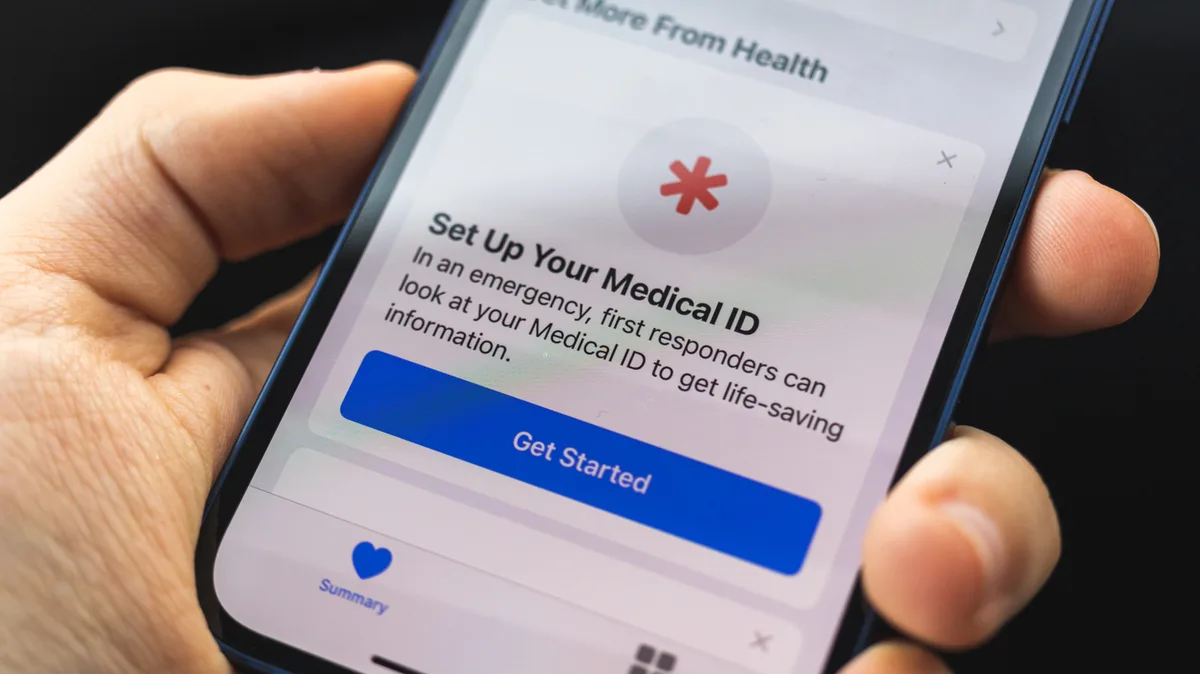
DenPhotos/Shutterstock To create or edit your Medical ID on iPhone, open the Health app, select your profile picture at the top-right, and choose Medical ID from the list.
You'll see two sliders that control the visibility of the info you enter below. With Show When Locked enabled, anyone can tap Emergency > Medical ID on the passcode entry screen to view your details. Share During Emergency Call is self-explanatory, letting 911 know of crucial details without you having to share them. You should enable these since having this information locked in your phone defeats the purpose.
As you scroll through, you'll see fields with basic medical info like your age, medications you're currently taking, allergies, and health conditions. If you like, record your height, weight, and blood type in Additional Information . There's also a spot for Notes if you have other concerns that don't fit anywhere else. All this data gives paramedics better info to determine what kind of help you need.
PerfectWave/Shutterstock Also on this page is your Emergency Contacts list. Here, designate people who should be alerted in an extreme situation. Hit Add Emergency Contact to pick from your existing list, then choose a relationship label. It's wise to add multiple people, just in case a particular person isn't available when the worst happens. You can always edit this list later.
These contacts are used in two ways. First, along with everything else mentioned above, the list is available to medical professionals or anyone else who finds your phone. They're able to reach out to those folks to let them know what's happening with you. Second, these people will be alerted and given your location when you use the Emergency SOS feature (which is different from your phone being stuck in SOS mode with no service). To review the options for this, open Settings and select Emergency SOS from the list.
Hadrian/Shutterstock By default, Emergency SOS uses the same button combination as turning off your iPhone: the Side button and either Volume button.
5News aggregated this summary from the outlet’s public feed. The full article, with all the context, is on www.engadget.com — the content belongs to Engadget.